Log Collation
You can use the Traffic Server log file collation feature to collect all logged information in one place. Log collation enables you to analyze a set of Traffic Server clustered nodes as a whole (rather than as individual nodes) and to use a large disk that might only be located on one of the nodes in the cluster.
Traffic Server collates log files by using one or more nodes as log collation servers and all remaining nodes as log collation clients. When a Traffic Server node generates a buffer of event log entries, it first determines if it is the collation server or a collation client. The collation server node writes all log buffers to its local disk, just as it would if log collation was not enabled. Log collation servers can be standalone or they can be part of a node running Traffic Server.
The collation client nodes prepare their log buffers for transfer across the network and send the buffers to the log collation server. When the log collation server receives a log buffer from a client, it writes it to its own log file as if it was generated locally. For a visual representation of this, see the figure below.
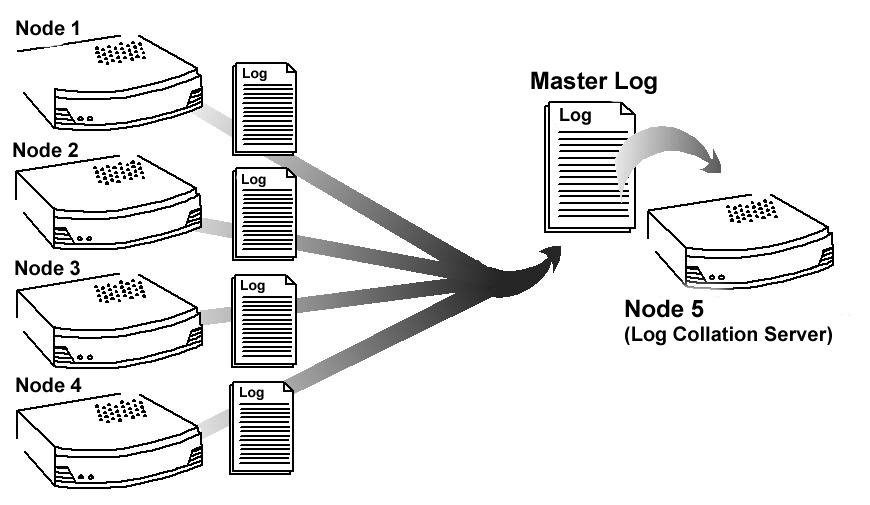
Log collation
If log clients cannot contact their log collation server, then they write their log buffers to their local disks, into orphan log files. Orphaned log files require manual collation.
注解
Log collation can have an impact on network performance. Because all nodes are forwarding their log data buffers to the single collation server, a bottleneck can occur. In addition, collated log files contain timestamp information for each entry, but entries in the files do not appear in strict chronological order. You may want to sort collated log files before doing analysis.
Server Configuration
To configure a Traffic Server node to be a collation server, perform the following
configuration adjustments in records.config:
Set :ts:cv:`proxy.local.log.collation_mode` to
1to indicate this node will be a server.CONFIG proxy.local.log.collation_mode INT 1
Configure the port on which the server will listen to incoming collation transfers from clients, using :ts:cv:`proxy.config.log.collation_port`. If omitted, this defaults to port
8085.CONFIG proxy.config.log.collation_port INT 8085
Configure the shared secret used by collation clients to authenticate their sessions, using :ts:cv:`proxy.config.log.collation_secret`.
CONFIG proxy.config.log.collation_secret STRING "seekrit"
Run the command
traffic_line -xto apply the configuration changes.
注解
If you modify the collation_port or secret after connections
between the collation server and collation clients have been established,
then you must restart Traffic Server on all nodes.
Standalone Collator
If you do not want the log collation server to be a Traffic Server node, then you can install and configure a standalone collator (SAC) that will dedicate more of its power to collecting, processing, and writing log files.
To install and configure a standalone collator:
Configure your Traffic Server nodes as log collation clients based on the instructions in Client Configuration.
Copy the traffic_sac binary from the Traffic Server
bindirectory, and place in a suitable location on the system that will act as the standalone collator.Copy the
libtsutil.solibraries from the Traffic Serverlibdirectory to the machine serving as the standalone collator.Create a directory called
configin the directory that contains the traffic_sac binary.Create a directory called
internalin theconfigdirectory you created above. This directory is used internally by the standalone collator to store lock files.Copy the
records.configfile from a Traffic Server node configured to be a log collation client to theconfigdirectory you created on the standalone collator.The
records.configfile contains the log collation secret and the port you specified when configuring Traffic Server nodes to be collation clients. The collation port and secret must be the same for all collation clients and servers.Edit :ts:cv:`proxy.config.log.logfile_dir` in
records.configto specify a location on your standalone collator where the collected log files should be stored.CONFIG proxy.config.log.logfile_dir STRING "/var/log/trafficserver/"
Enter the following command to start the standalone collator process:
traffic_sac -c config
You will likely want to configure this program to run at server startup, as well as configure a service monitor in the event the process terminates abnormally. Please consult your operating system’s documentation for how to achieve this.
Client Configuration
To configure a Traffic Server node to be a collation client, follow the steps below. If
you modify the collation_port or secret after connections between the
collation clients and the collation server have been established, then you must
restart Traffic Server.
- In the
records.configfile, edit the following variables:- :ts:cv:`proxy.local.log.collation_mode`:
2to configure this node as log collation client and sen standard formatted log entries to the collation server. For XML-based formatted log entries, seelogs_xml.configfile. - :ts:cv:`proxy.config.log.collation_host`
- :ts:cv:`proxy.config.log.collation_port`
- :ts:cv:`proxy.config.log.collation_secret`
- :ts:cv:`proxy.config.log.collation_host_tagged`
- :ts:cv:`proxy.config.log.max_space_mb_for_orphan_logs`
- :ts:cv:`proxy.local.log.collation_mode`:
- Run the command
traffic_line -xto apply the configuration changes.
Collating Custom Logs
If you use custom event log files, then you must edit logs_xml.config,
in addition to configuring a collation server and collation clients.
To collate custom event log files:
On each collation client, edit
logs_xml.configand add the CollationHosts attribute to the LogObject specification:<LogObject> <Format = "squid"/> <Filename = "squid"/> <CollationHosts="ipaddress:port"/> </LogObject>
Where
ipaddressis the hostname or IP address of the collation server to which all log entries (for this object) are forwarded, andportis the port number for communication between the collation server and collation clients.Run the command
traffic_line -Lto restart Traffic Server on the local node ortraffic_line -Mto restart Traffic Server on all the nodes in a cluster.